How to Digitize a Kurti Neckline for Machine Embroidery
A practical workflow for turning kurti neckline artwork into an editable design and machine file, with measurements and sample checks.
To digitize a kurti neckline, establish its finished size and shape, build the artwork as stitch objects, plan the sewing sequence, and choose settings for the intended fabric. Save an editable master, export the format your machine accepts, and test the design on matching materials before stitching the garment.
The important decisions happen before export. A neckline can look balanced on screen but still sit incorrectly on the garment if its opening, centreline or sewing position was measured incorrectly.
This guide explains a manual workflow you can follow in embroidery digitizing software such as Wilcom. It is an educational guide, not a report of an EMBfile test sew-out. Menu names and available tools vary by software version.
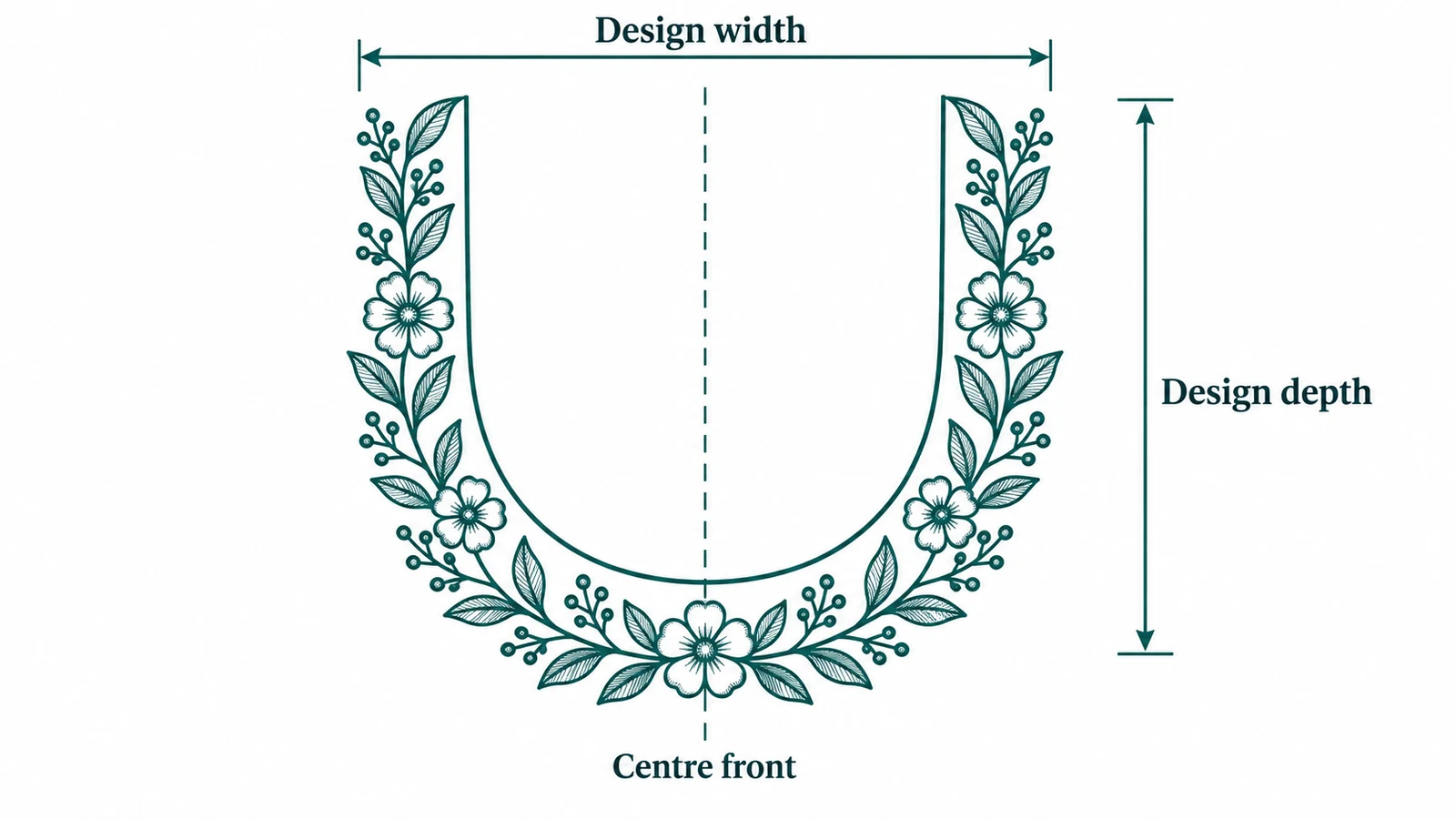
Image: AI-generated measurement illustration, not a tested sew-out or cutting pattern. Use your actual garment measurements.
Before digitizing: confirm the neckline brief
Measure the finished opening and embroidery area
Start with the garment pattern or reliable measurements. Mark the centre front, the intended finished neckline and the area available for embroidery. Record width and depth in one unit throughout the project.
Distinguish the finished opening from the cutting line and seam allowance. They are not interchangeable references. Ask whether the panel will be embroidered before or after the neckline is cut and finished; that decision affects how you interpret the pattern and position the design.
For example, an illustration may show flowers following a U-shaped opening. The flowers need a measured relationship to the finished opening, not simply to the edge of the picture. Confirm that relationship with the person constructing the garment rather than assuming a standard offset.
If the file already exists and you only need to position it, use the separate guide to placing a neckline design.
Confirm fabric, hoop and machine format
Record the fabric, stabilizer planned for the job, machine model, usable embroidery field and required file format. Check the full design dimensions against the machine's embroidery field; a hoop's outside dimensions do not tell you what area the machine can stitch.
Also agree on thread colours, the required deadline and whether the artwork should be symmetrical. Do not automatically mirror an intentionally asymmetric neckline.
For an introduction to material choices, read thread and fabric basics. If the machine format is uncertain, confirm it against the machine documentation before exporting.
Prepare and scale the artwork
Import a clear drawing, scan or photograph as a reference. A photograph taken at an angle can distort the neckline, so use a flat pattern or measured drawing when possible.
Set the artwork to its intended size using a known measurement. Then check both width and depth. Making only the width correct can leave the depth wrong if the reference image was distorted.
Place a centreline through the design and mark the finished neckline as a separate reference. Keep these construction guides distinct from objects that will actually stitch.
Simplify details that cannot be reproduced clearly at the final size. Tiny gaps, closely packed outlines and small ornament may need redrawing. Enlarging the whole design to rescue one detail could make it unsuitable for the garment.
Plan stitch objects, direction and sequence
Divide the drawing into sewable shapes
Treat the artwork as a collection of objects: border columns, leaves, flowers, outlines and larger filled areas. Digitize these deliberately instead of expecting an image conversion to make every production decision.
Satin is useful for narrow columns and turning shapes. Broader areas may call for a fill, while a simple line can use a running stitch. The final choice depends on the shape and intended appearance. Wilcom's satin documentation explains its use for narrow shapes.
At curves, inspect the inner and outer edges. Watch for crowded stitches inside a tight turn and weak coverage outside it. Adjust the object shape or stitch direction rather than assuming more stitches will solve both problems.
Review how the machine will move
Step through the sewing sequence in the software. Look at the order of overlapping objects, where each object starts and ends, and how the machine travels between them.
On a neckline, pay particular attention to transitions across the empty opening. A connection that looks harmless in a full-screen preview may create an unwanted thread across an area that should remain clear.
Colour sorting alone is not a complete sequencing strategy. Keep the intended layering intact and consider whether a travel can be covered by later stitching or needs a trim. Confirm that the machine and export format handle the required commands as expected.
For a symmetrical design, compare both sides after duplicating or mirroring objects. The shape may be symmetrical while the start points and travel paths still need adjustment.
Choose fabric-dependent underlay and compensation
Underlay, stitch spacing and pull compensation work together. Wilcom explains that stitching can pull fabric inward and that suitable settings depend on the fabric, stitch type and object shape. Its underlay and pull compensation guide is a useful reference.
Use an appropriate fabric preset as a starting point if your software offers one, then inspect the settings for the actual objects. Avoid copying one compensation or density value into every border, leaf and flower.
Record the units used by the software. Do not transfer a number between programs unless you understand what that control measures.
There is no universal setting supplied here: the fabric, stabilizer and test result have not been specified. Those details are necessary before recommending production values.
Save the editable design and export the machine file
Keep the editable master as well as the exported machine file. In Wilcom, the EMB file preserves design information for later editing; the exported machine file serves a different purpose. Reopening a machine file does not restore all the original design information. See Wilcom's explanation of embroidery file types.
Use clear revision names so the tested export can be matched to its master. Record the final dimensions and colour sequence with that revision.
Choose a format accepted by the specific machine. Check the exported file again for dimensions, orientation, colour sequence and travel behaviour. The EMBfile format guide explains common format names, but the machine's own documentation should settle compatibility questions.
Test the neckline and record corrections
Check alignment, coverage and distortion
Sew a sample using the intended fabric, stabilizer, thread and setup before committing the garment. A software preview cannot establish how that combination will behave physically.
Compare the sample with the measured neckline reference. Check these points:
- Does the centreline align, and does the embroidery follow the intended finished opening?
- Are outlines and filled areas aligned where they should meet?
- Are narrow curves clear, with acceptable coverage?
- Are there unwanted connections across open areas?
- Does the fabric lie as intended after it is removed from the hoop?
Inspect both the stitching and the fabric around it. If puckering appears, investigate the material support and machine setup as well as the design. The guide to preventing puckering provides a separate troubleshooting starting point.
Keep a revision record
Write down the observation before making a change. For example: “The outline does not meet the fill on the left flower.” That is a useful observation; “increase every setting” is not a diagnosis.
Check the relevant object alignment, sequencing and settings, then retest a deliberate change. Keep the earlier sample or a clear photograph so you can compare revisions.
Record the file revision, materials, setup, change and result. This is a suggested testing method, not a claim that the example has already been sewn successfully. Approve the production file only after reviewing its actual sample.
When custom digitizing would help
If you have the artwork but need help turning it into a machine file, custom digitizing from EMBfile is the next step. Have the final size, fabric, machine format and deadline ready so the discussion can focus on your particular neckline.
Ask EMBfile on WhatsApp